User Guide
Welcome to the NeuroSync User Guide!
NeuroSync helps psychiatrists manage patient records and session notes efficiently. Choose a topic below to get step-by-step instructions, troubleshoot issues, and maximize your productivity!
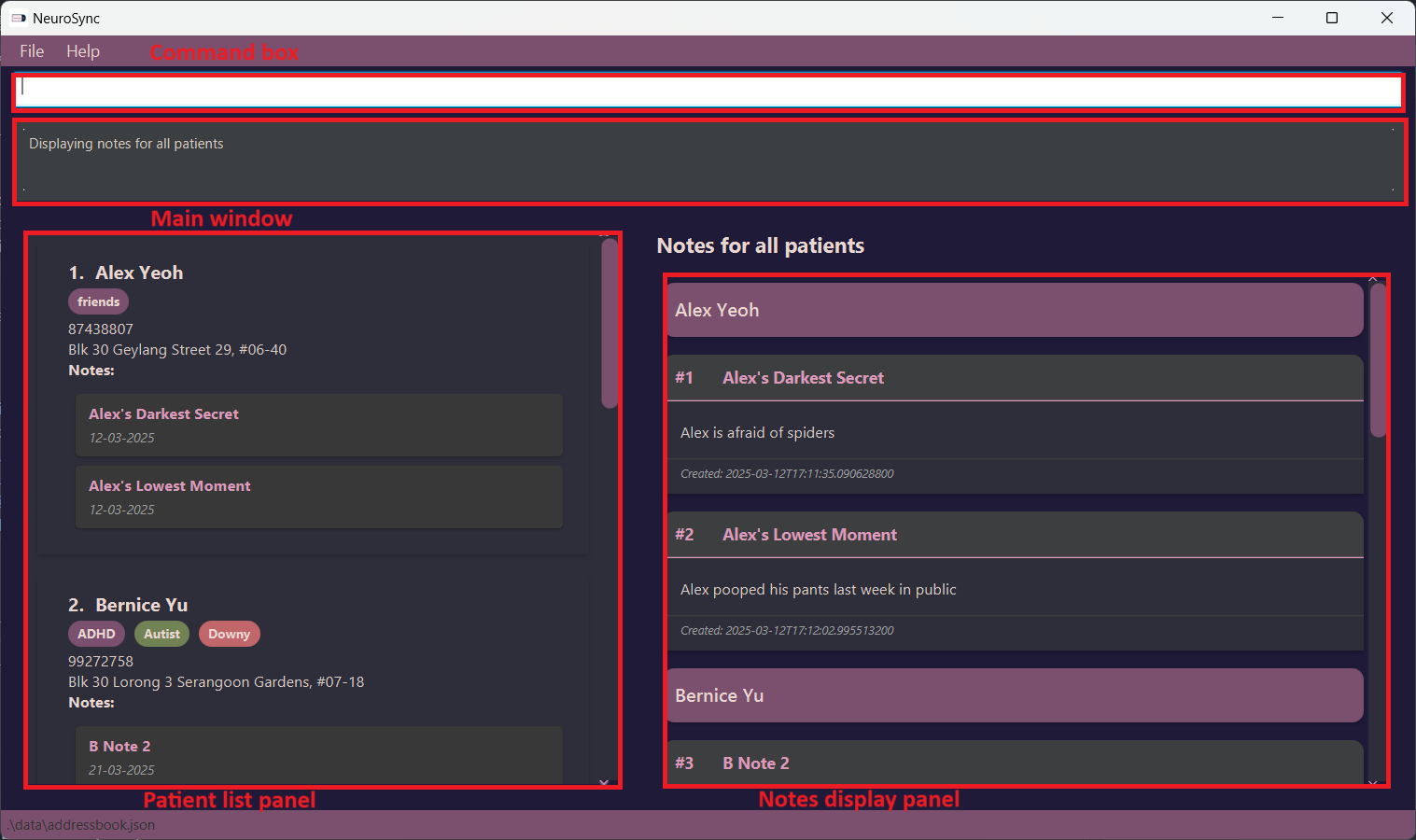
💡 Core Features
- 📁 Manage Patient Records - Add, edit, and delete patient details.
- 📝 Session Notes - Keep track of discussions, diagnoses, and treatments.
- 🔎 Powerful Search & Filters - Quickly retrieve any patient or note.
- ⚡ Command-Based Interface - Fast, efficient, and easy to use.
📜 Table of Contents
- Introduction
- Getting Started
- Core Features
- Command Summary
-
Commands & Usage
- Patient Management Commands
- Note Management Commands
- General Commands
- FAQs & Troubleshooting
- Technology Stack
- Acknowledgemets
- Contact & Support
📢 Introduction
What does NeuroSync do?
NeuroSync keeps track of patient details and session notes effortlessly. No more searching through paper files—find what you need instantly using powerful search and filter commands.
Why Use NeuroSync?
✅ Fast & Simple - No unnecessary clicks, just type commands.
✅ Powerful Search & Filters - Retrieve patient data in seconds.
✅ Organized & Secure - Keep confidential data well-structured.
🚀 Getting Started
1️⃣ Download & Install
- Download the latest release from NeuroSync Releases.
- Move the downloaded jar file to your preferred folder where you’d like to store your NeuroSync app
- Check your Java version:
- NeuroSync runs exclusively on Java version 17
- To check your Java version, you can follow this tutorial
- Open NeuroSync:
- For Windows:
- Open the folder where NeuroSync is saved
- Hold shift, right-click in the folder, select “Open Command Window Here”
- Type the following command and press Enter.
java -jar NeuroSync.jar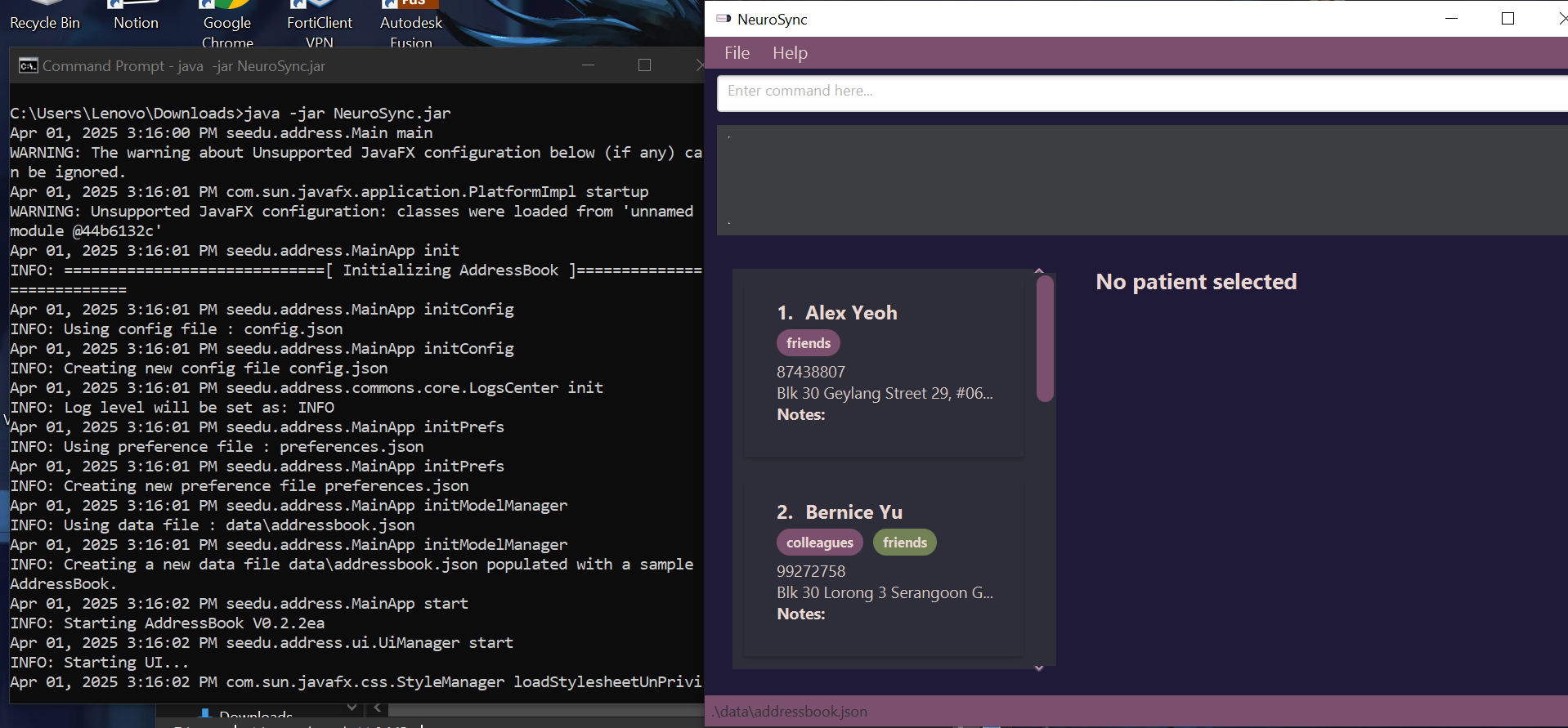
- For Mac:
- Press
Command (⌘) + Spaceto open spotlight search, search for Terminal and open it - Type
cd(followed by a space), then drag and drop the folder where NeuroSync is saved into the Terminal window - Press Enter, then type:
java -jar NeuroSync.jar - Press Enter
- Press
- You can now use NeuroSync!
2️⃣ System Requirements
- Java: Version 17
- OS Compatibility: Windows, macOS, Linux
🧭 Command Summary
| Action | Command Syntax |
|---|---|
| List Patients | list |
| Find Patient |
find KEYWORD [MORE_KEYWORDS]find yu
|
| Add Patient |
add n/NAME p/PHONE_NUMBER a/ADDRESS [t/TAG]…add n/John Doe p/98005442 a/123 Clementi Street t/ADHD
|
| Edit Patient |
edit INDEX [n/NAME] [p/PHONE_NUMBER] [a/ADDRESS] [t/TAG]…edit 1 p/91234567
|
| Delete Patient |
delete INDEXdelete 1
|
| View Notes |
viewnotes INDEX or viewnotes allviewnotes 1 or viewnotes all
|
| Filter Note |
filternote INDEX nt/TITLE_KEYWORDfilternote 1 nt/anxiety
|
| Add Note |
note INDEX nt/TITLE nc/CONTENTnote 1 nt/Mood Assessment nc/Discussed mood swings and coping strategies.
|
| Edit Note |
editnote INDEX nt/TITLE nc/CONTENTeditnote 1 nt/Mood Assessment nc/Updated content with more details.
|
| Delete Note |
deletenote INDEX nt/TITLEdeletenote 1 nt/Mood Assessment
|
| Undo | undo |
| Redo | redo |
| Clear Data | clear |
| Help | help |
 Notes about the command format:
-
Words in
UPPER_CASEare the parameters to be supplied by the user.
e.g. inadd n/NAME,NAMEis a parameter which can be used asadd n/John Doe. -
Items in square brackets are optional but commands like
editrequire at least one parameter to be specified.
e.gn/NAME [t/TAG]can be used asn/John Doe t/ADHDor asn/John Doe. -
Items with
… after them can be used multiple times including zero times.
e.g.[t/TAG]…can be used ast/ADHD,t/ADHD t/Depressionetc. -
Parameters can be in any order.
e.g. if the command specifiesn/NAME p/PHONE_NUMBER,p/PHONE_NUMBER n/NAMEis also acceptable. -
Extraneous parameters for commands that do not take in parameters (such as
help,list,exitandclear) will be ignored.
e.g. if the command specifieshelp 123, it will be interpreted ashelp. -
After executing commands that changes the data, the displayed list will refresh to display all patients again.
Commands include:add,edit,delete,note,editnote,deletenote,undo,redo. -
If you are using a PDF version of this document, be careful when copying and pasting commands that span multiple lines as space characters surrounding line-breaks may be omitted when copied over to the application.
-
For commands with the
INDEXparameter,INDEXrefers to the numbers from the list of patients currently displayed. Check that you are giving a valid index for the currently displayed list! -
For commands with the
INDEXparameter, if you enter the index as0or a number longer than 10 digits, the error message will tell youInvalid command format!. Ensure that you are giving a valid index for the currently displayed list!
🎯 Commands & Usage
Each command is designed to make patient and session management fast and intuitive.
Listing Patients
You can view all patients using the list command!
Example:
list
✔️ Expected Output:
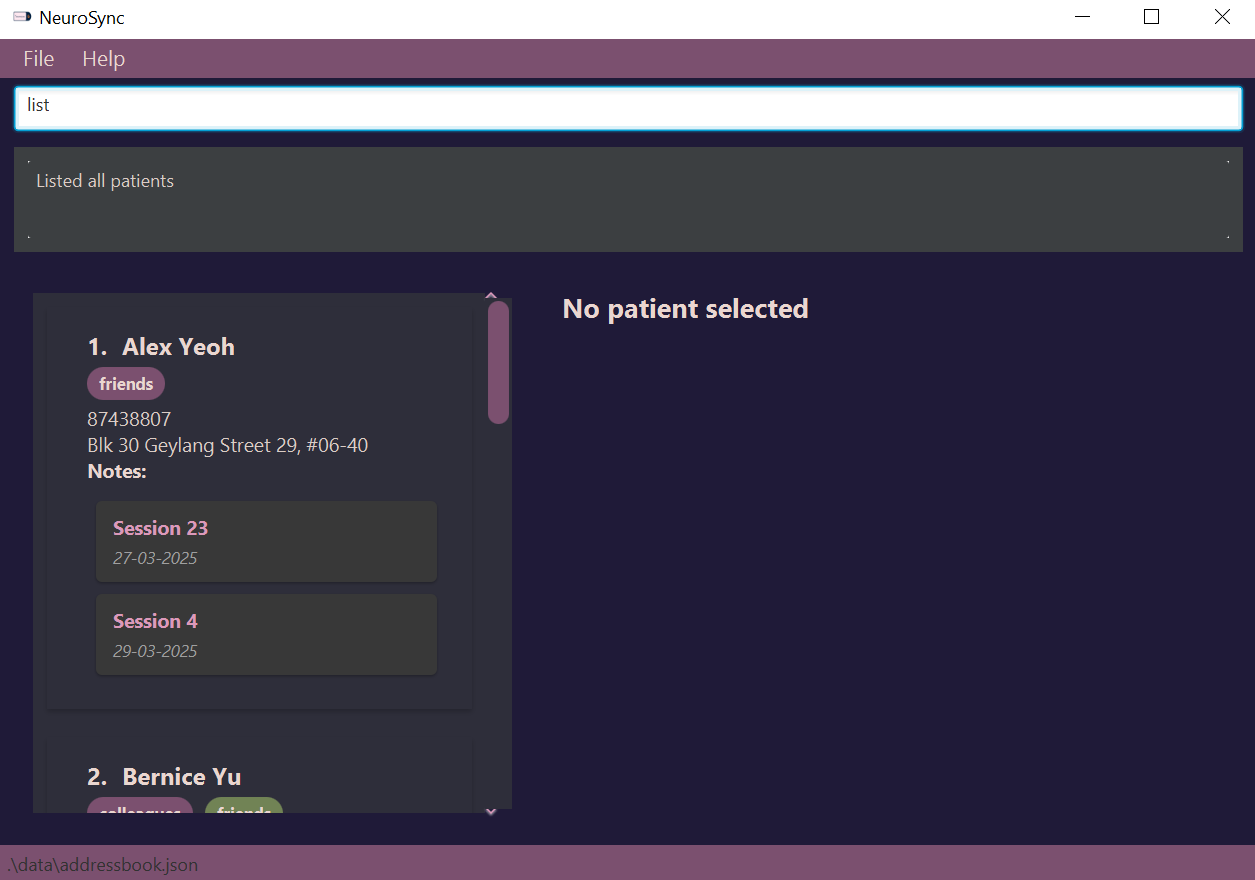
💡 Tip: Use the Find command to quickly locate a patient.
Finding a Patient
You can find a specific patient by their name,
phone number or address, using the find command.
find KEYWORD [MORE_KEYWORDS]
Example:
find yu
✔️ Expected Output:
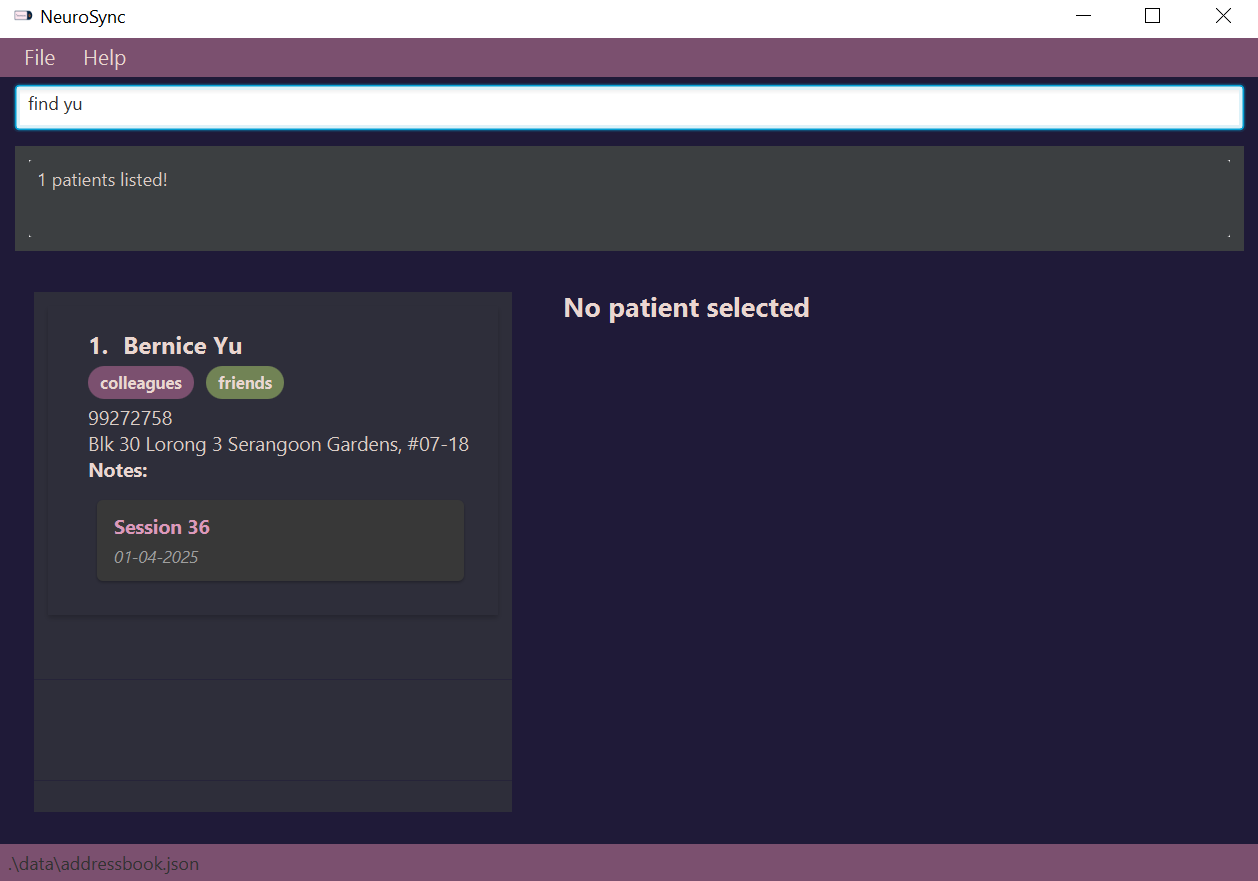
💡 Tip: Multiple matches may be returned if you use a common name/address/phone number. Use specific names or words to narrow your search.
Adding a Patient
You can add new patients using their name, phone number, and address.
add n/NAME p/PHONE_NUMBER a/ADDRESS [t/TAG]…
Example:
add n/John Doe p/98005442 a/123 Clementi Street t/ADHD
✔️ Expected Output:
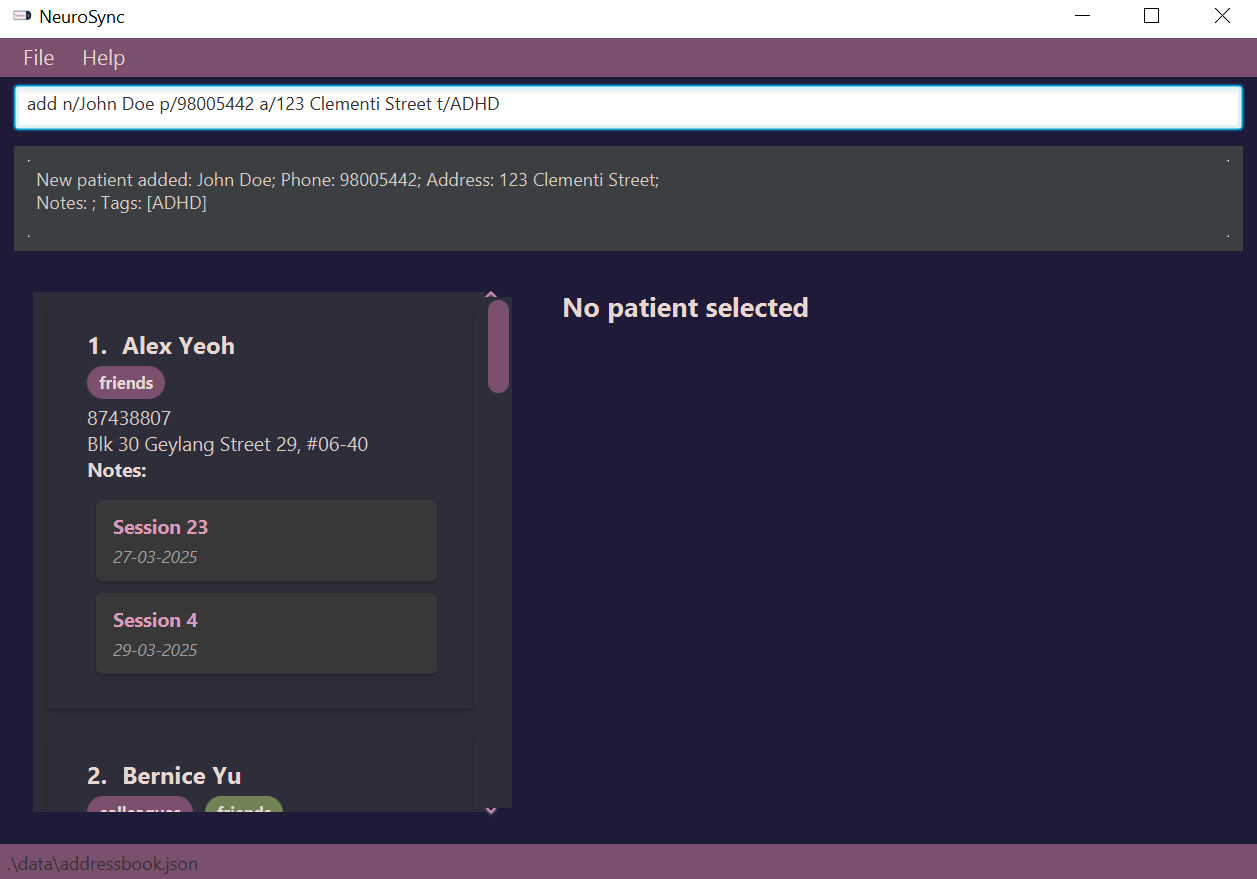
⚠️ Warning: Duplicate patient names are not allowed, for clarity. (case insensitive)
💡 Tip:
Use tags (t/) to categorize patients (e.g., t/Anxiety). Duplicate tags (case-insensitive) will be auto-filtered to only preserve the first instance seen.
💡 Tip: Name Constraints
Names should only contain alphabets, numbers, spaces, and certain special characters ,.'-
Additionally, a s/o or d/o is allowed between names (e.g, Ridwan s/o Mista)
Only one s/o or d/o is allowed in the full name.
💡 Tip: Phone Number Constraints
Phone numbers must consist of only digits, optionally starting with a ‘+’, and be between 3-15 digits long.
This allows you to add patients from multiple countries!
Example:
add n/John Doe p/98005442 a/123 Clementi Street t/ADHD t/adhd t/Anxiety t/ANXIETY
In this example, only the tags ADHD and Anxiety will be preserved.
Editing a Patient
You can change a patient’s information using the edit command!
edit INDEX [n/NAME] [p/PHONE_NUMBER] [a/ADDRESS] [t/TAG]…
Example:
edit 1 p/91234567
✔️ Expected Output:
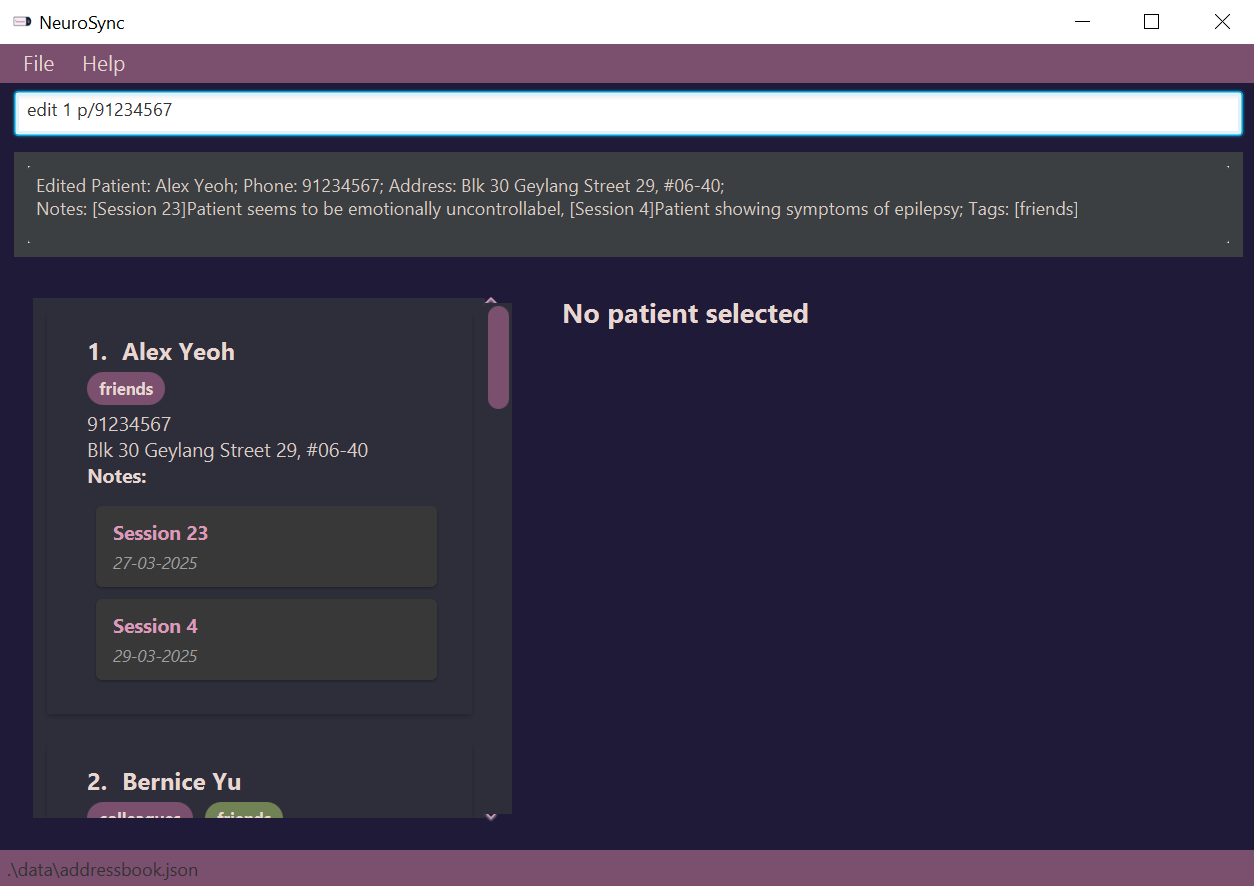
⚠️ Warning: Only update fields that need changing to avoid accidental edits.
💡 Tip: You can edit just one piece of data, e.g, only the phone number.
💡 Tip: You may also use tags (t/) to alphanumerically categorize patients (e.g., t/Anxiety). Duplicate tags (case-insensitive) will be auto-filtered to only preserve the first instance seen.
Example:
add n/John Doe p/98005442 a/123 Clementi Street t/ADHD t/adhd t/Anxiety t/ANXIETY
In this example, only the tags ADHD and Anxiety will be preserved.
Deleting a Patient
After a patient recovers, you can delete them from NeuroSync using the index number listed next to their name.
📝 Note: Deleting a patient also deletes all of their notes.
delete INDEX
Example:
delete 3
✔️ Expected Output:
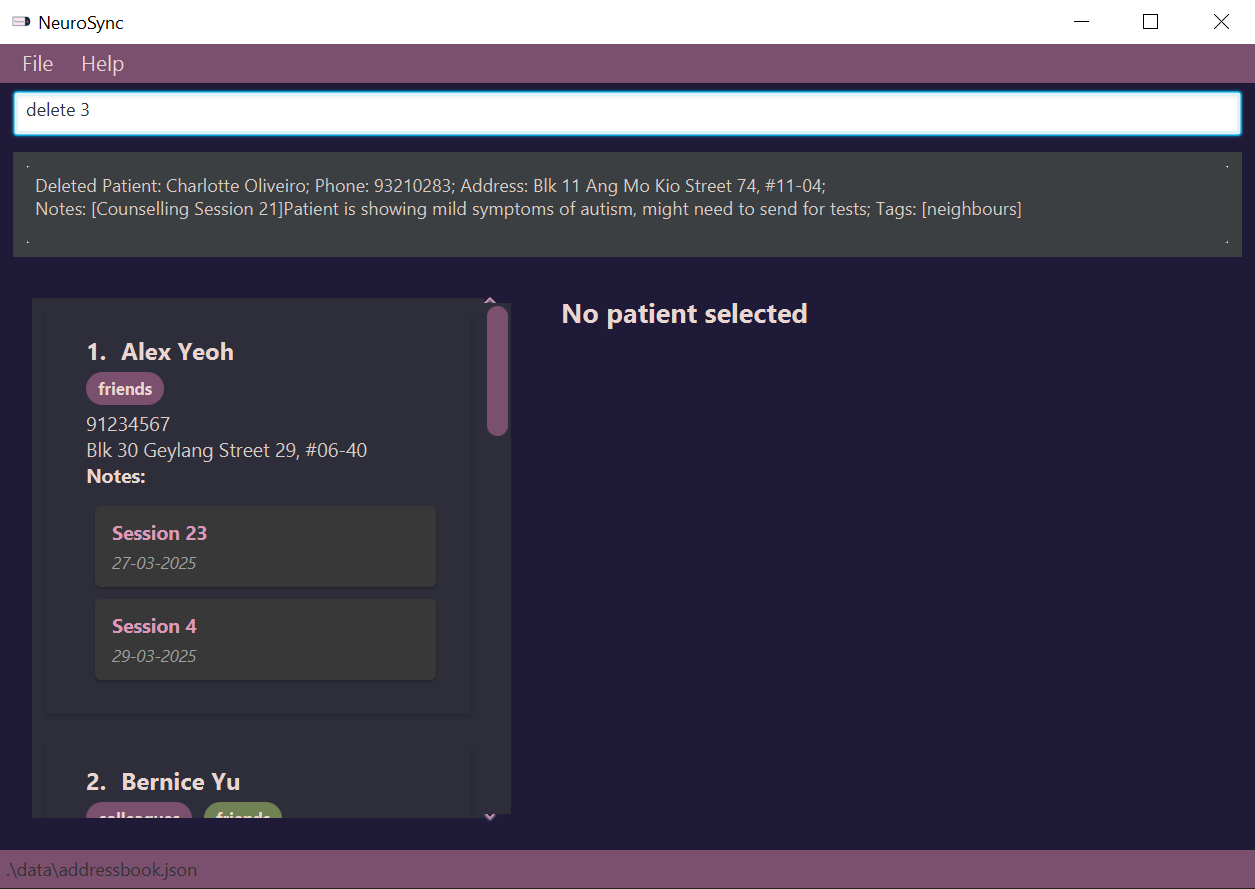
💡 Tip: You can undo a delete using the undo command!
Viewing Notes
To see all notes at a glance!
viewnotes INDEX
viewnotes all
💡 Tip: The viewnotes all command only displays notes from your current patient list panel.
Example:
viewnotes 1
✔️ Expected Output:
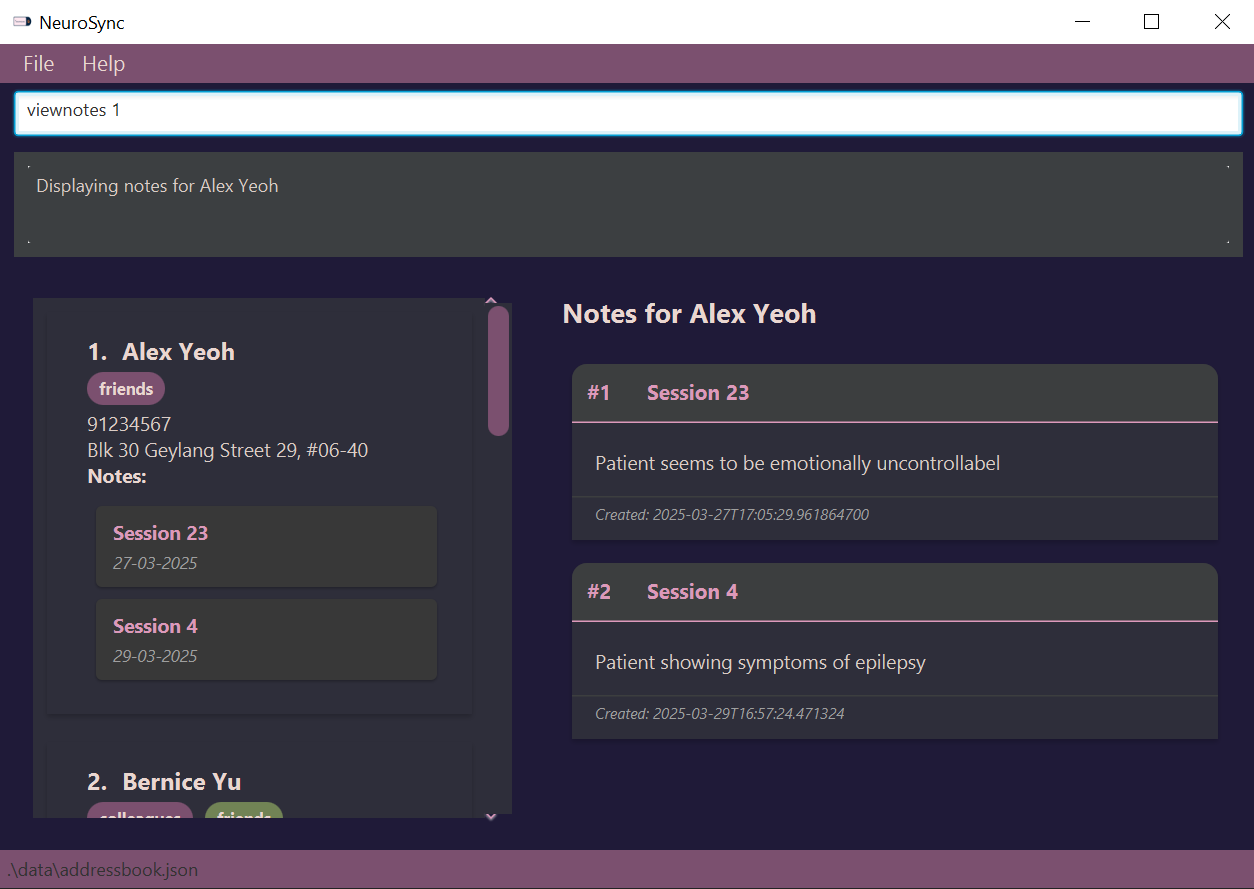
⚠️ Warning: If a patient has many notes, it may take a moment to load.
💡 Tip: Use Filter Notes to narrow down results if you have many notes.
Filtering Notes
To see specific notes for one patient!
filternote INDEX nt/TITLE_KEYWORD
Example:
filternote 1 nt/23
✔️ Expected Output:
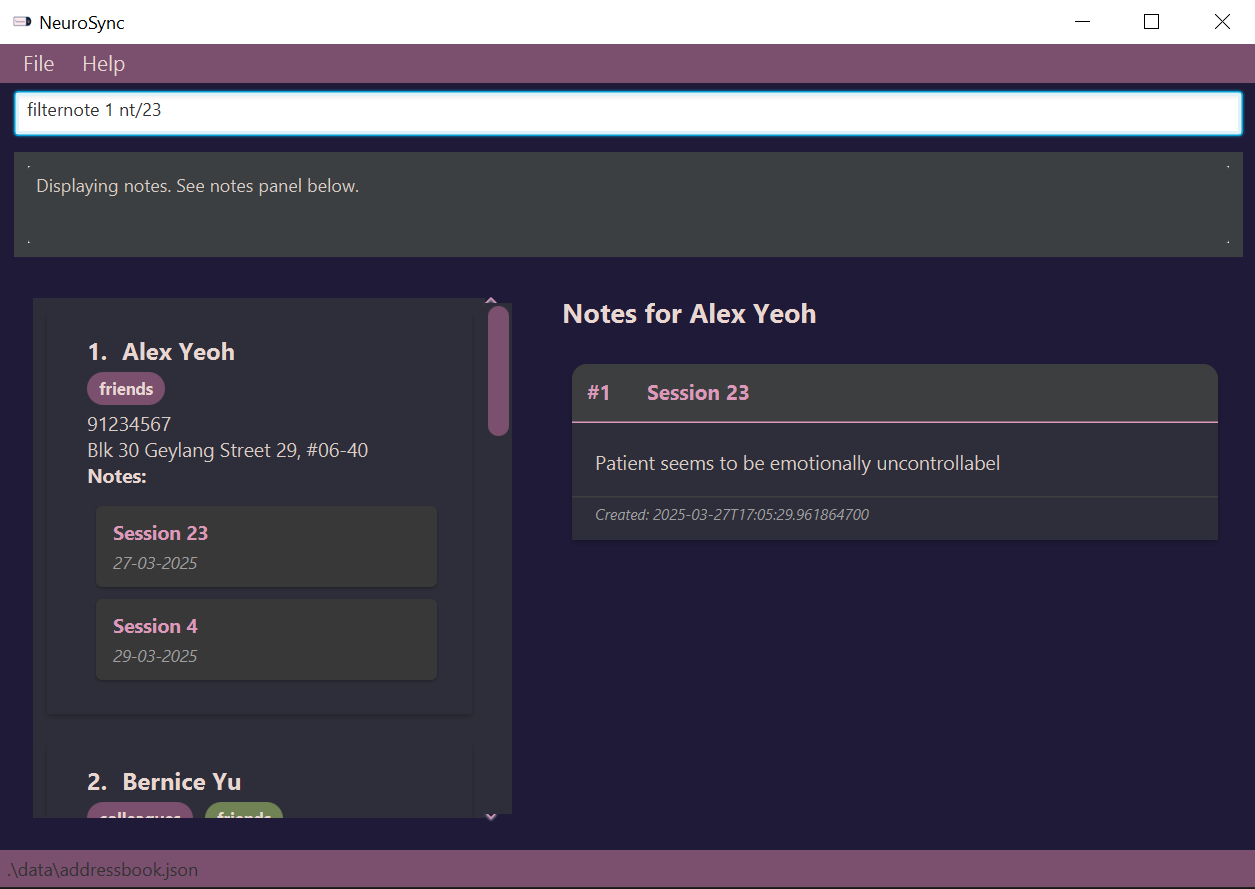
💡 Tip: Be specific with keywords to avoid too many results. Keywords should be part of the note’s title for better results.
Adding a Note
You can add notes to a patient to keep track of discussions, diagnoses, etc.
Duplicate note titles (case-insensitive) are not allowed.
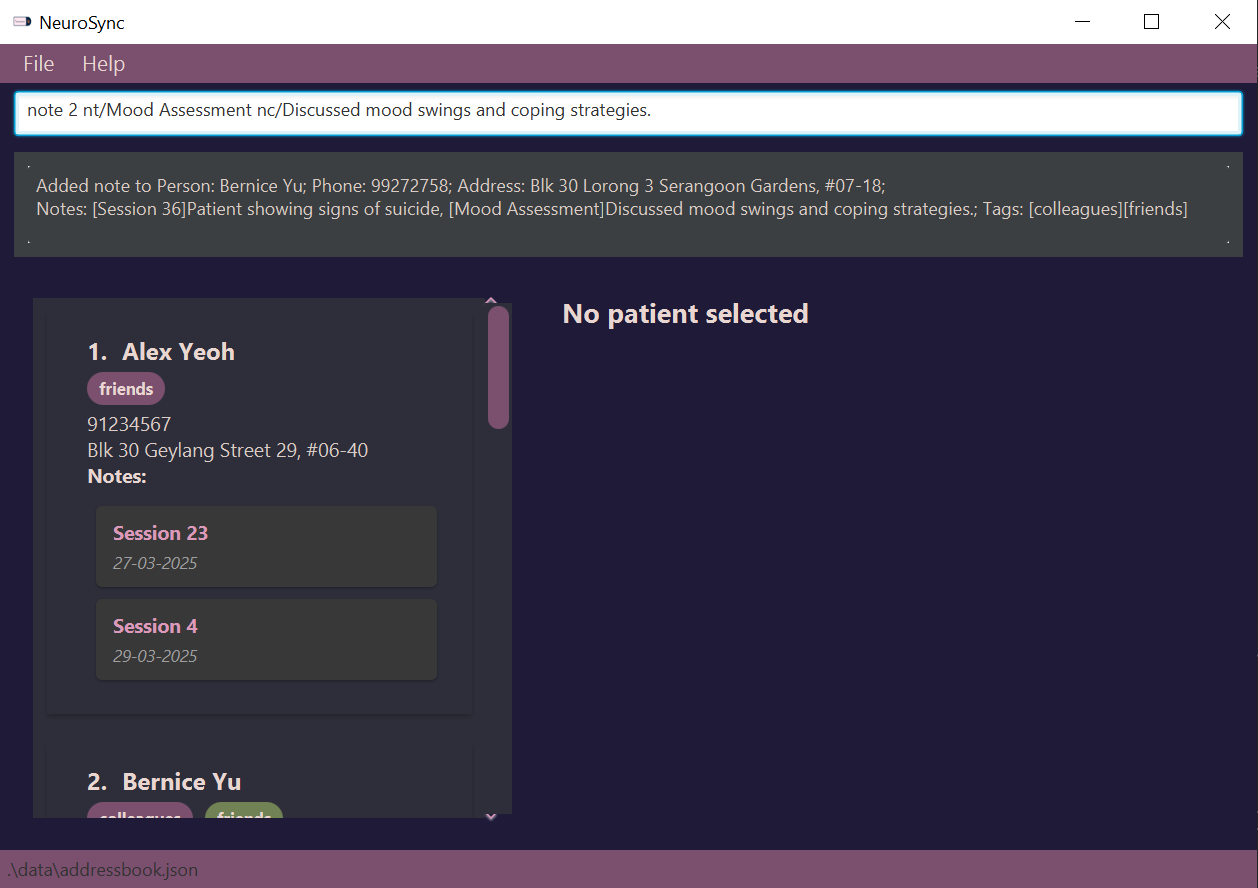
note INDEX nt/TITLE nc/CONTENT
Example:
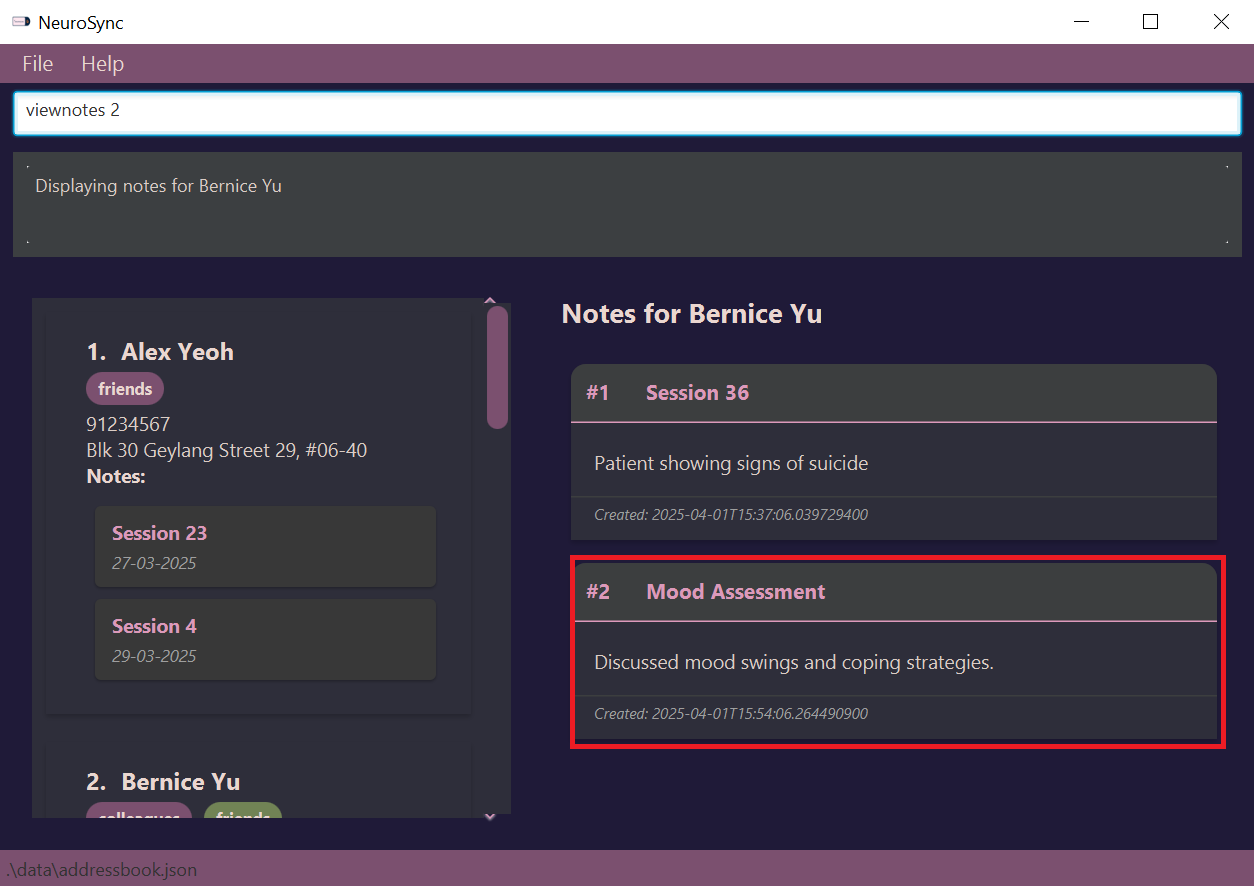
note 2 nt/Mood Assessment nc/Discussed mood swings and coping strategies.
✔️ Expected Output:
View the changes after:
💡 Tip: Keep notes short and concise, highlighting the most important aspects.
Editing a Note
You can always make changes to your note content after creating it, using the editnote command!
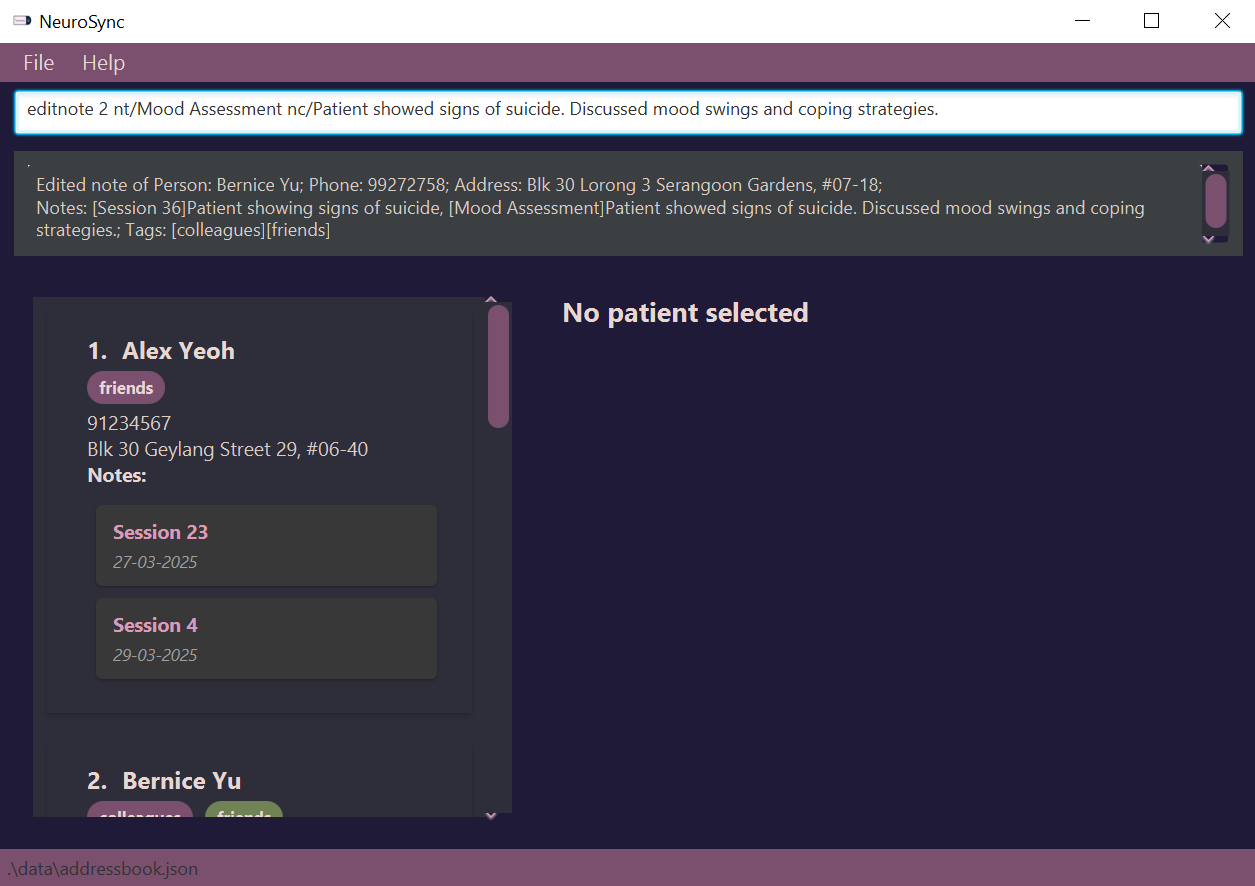
editnote INDEX nt/TITLE nc/CONTENT
Example:
editnote 2 nt/Mood Assessment nc/Patient showed signs of suicide. Discussed mood swings and coping strategies.
✔️ Expected Output:
View the changes after:
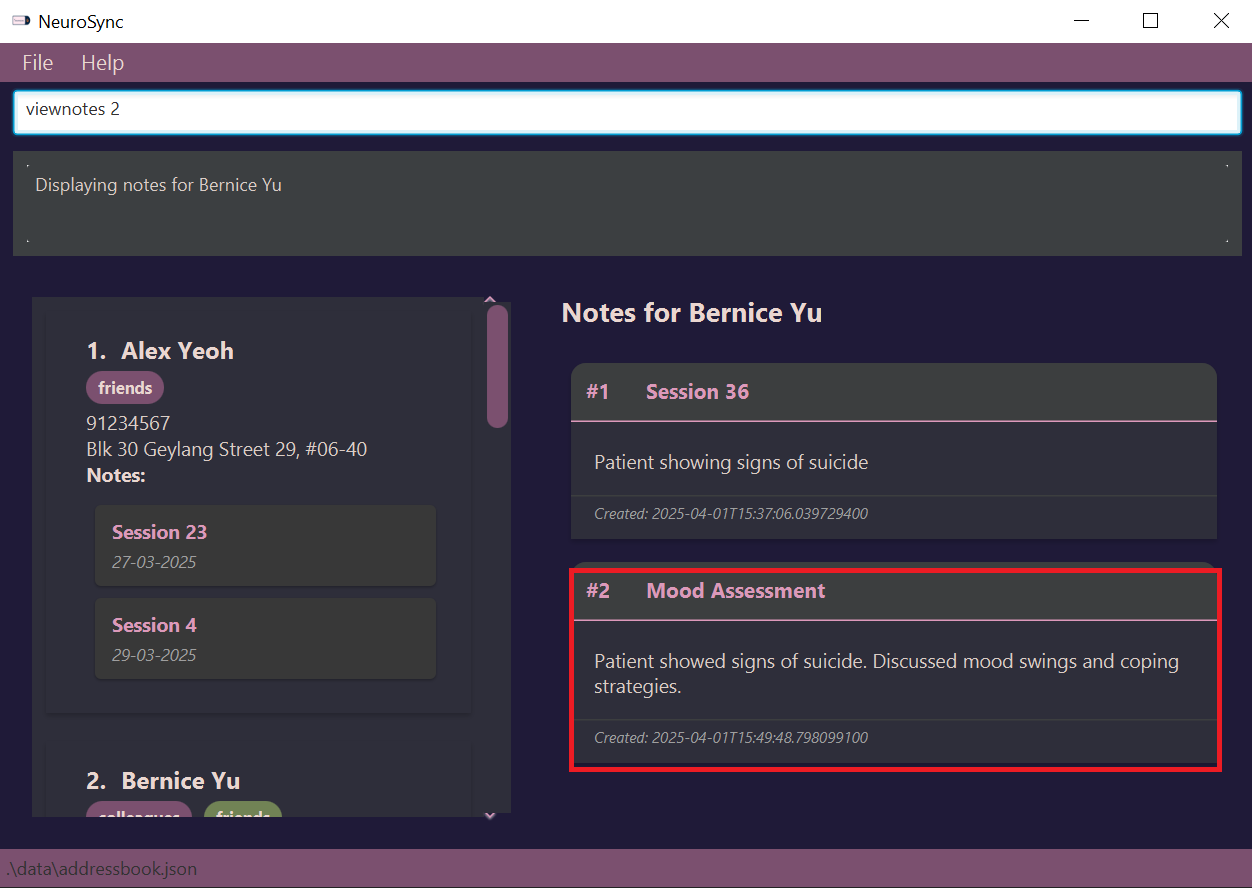
💡 Tip: You can only edit the note content. If you wish to change a note title, you can delete a note and add a new note with the changed title!
Deleting a Note
If you no longer need a note, you can delete it using the deletenote command.
deletenote INDEX nt/TITLE
Example:
deletenote 2 nt/Mood Assessment
✔️ Expected Output:
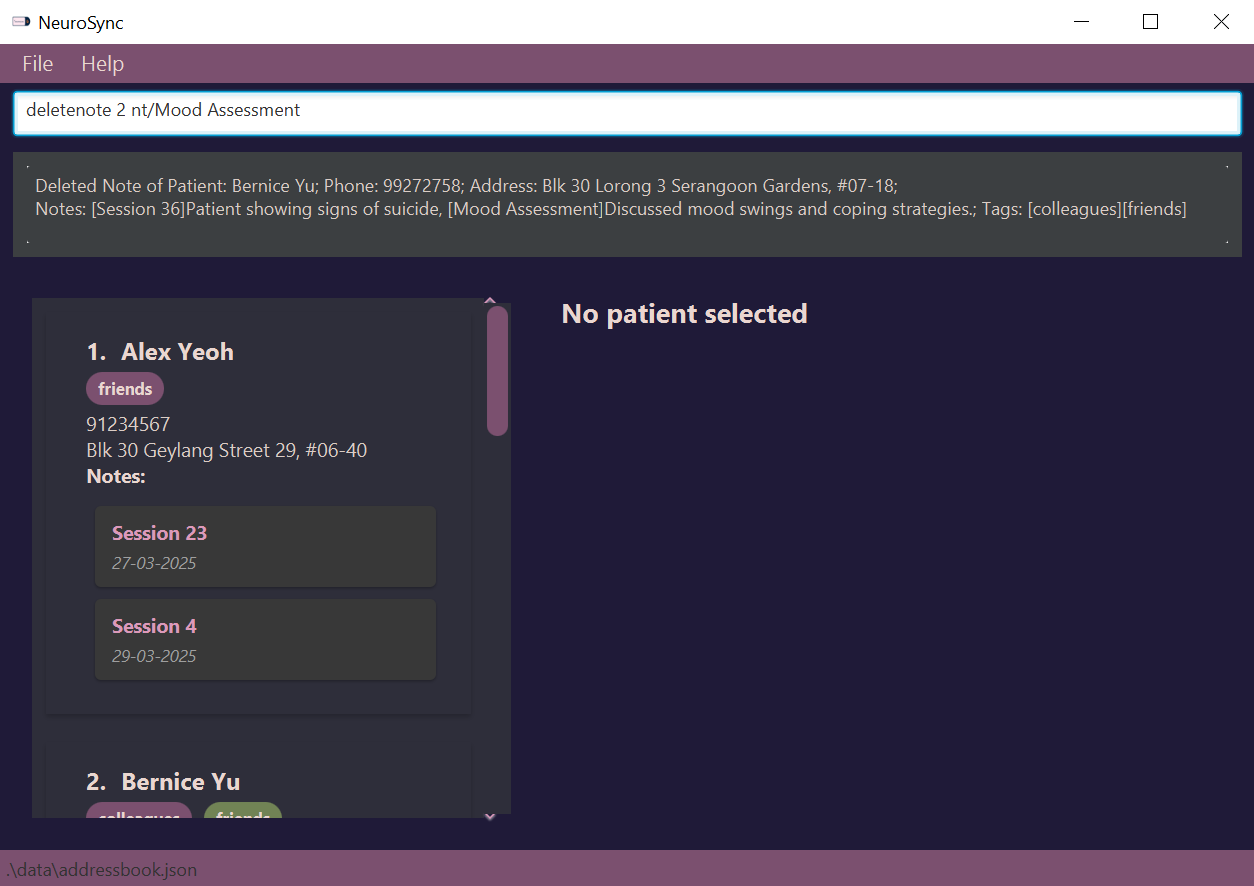
View the changes after:
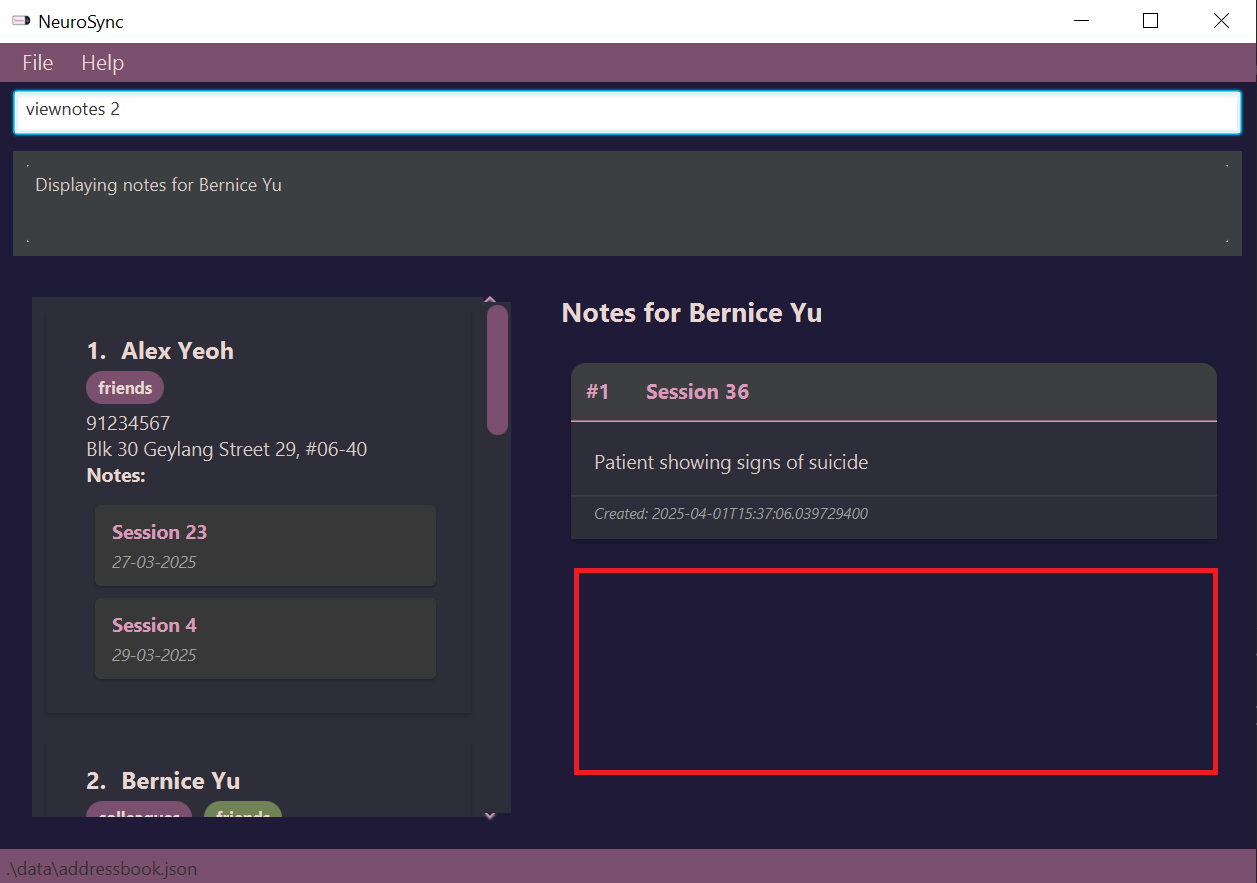
💡 Tip: You can undo a deletenote using the undo command!
Undo
If you made a mistake, don’t stress! You can undo your previous change using this command.
Example (following the example in deletenote):
undo
✔️ Expected Output:
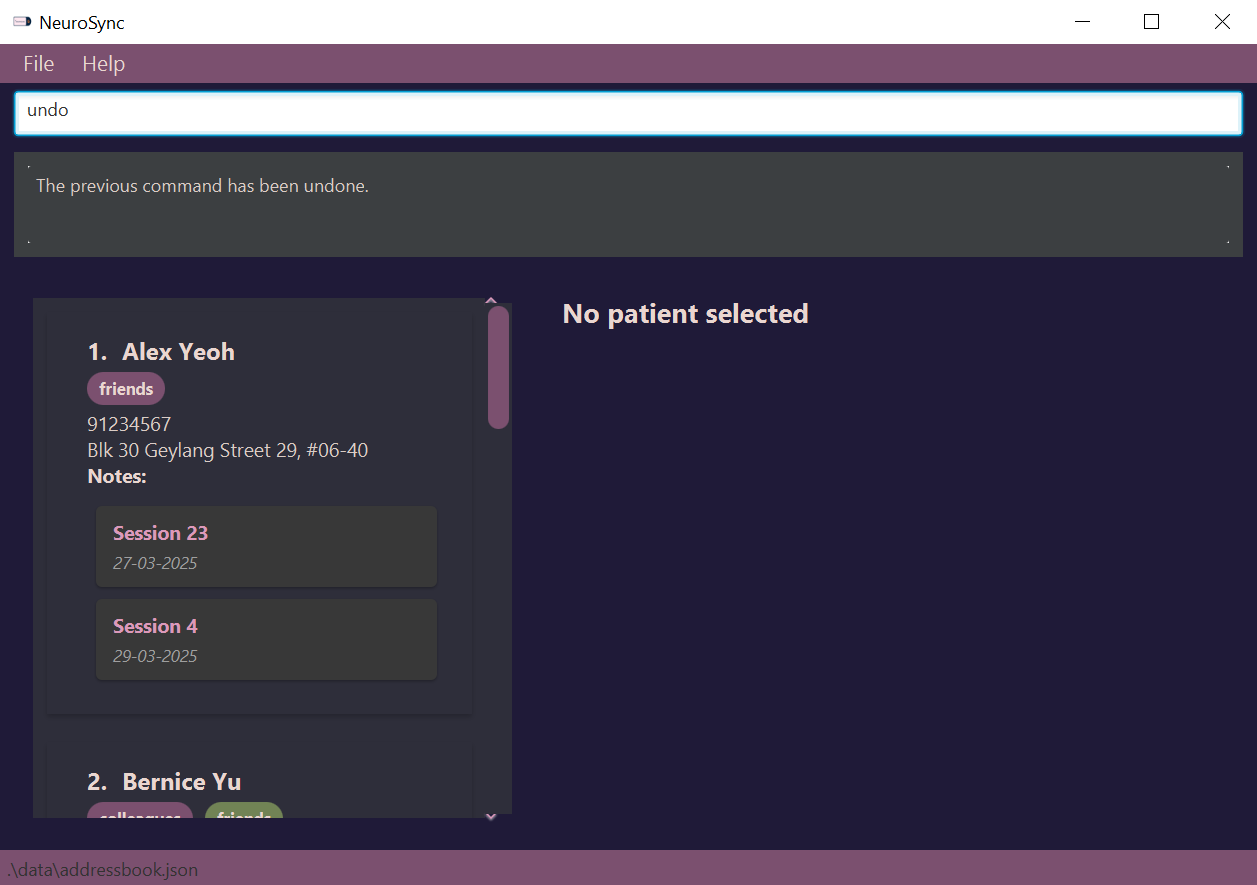
View the changes after:
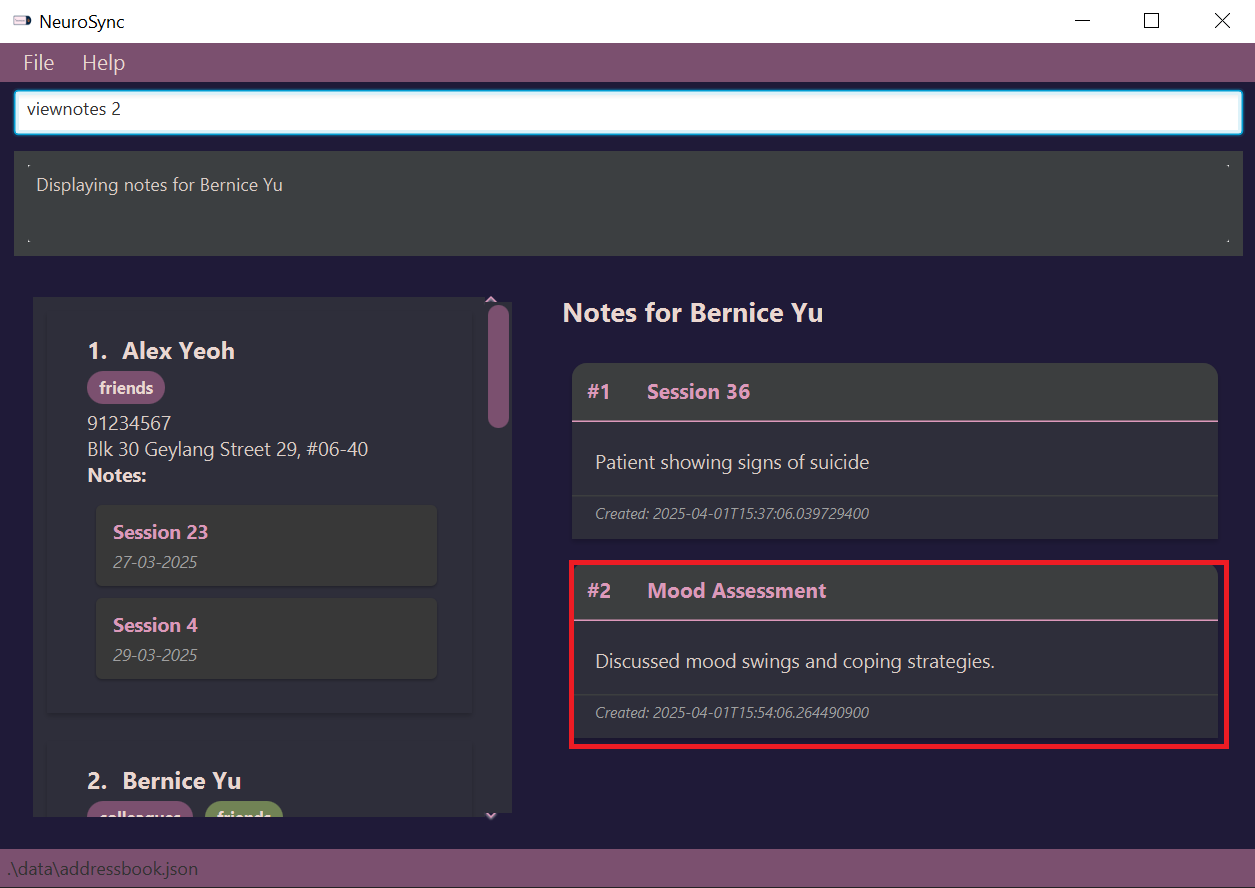
💡 Tip: undo command does not apply to list, find, viewnotes, filternoteand help.
Redo
If you need to get back a change you undid, don’t stress! You can redo your previous change using this command.
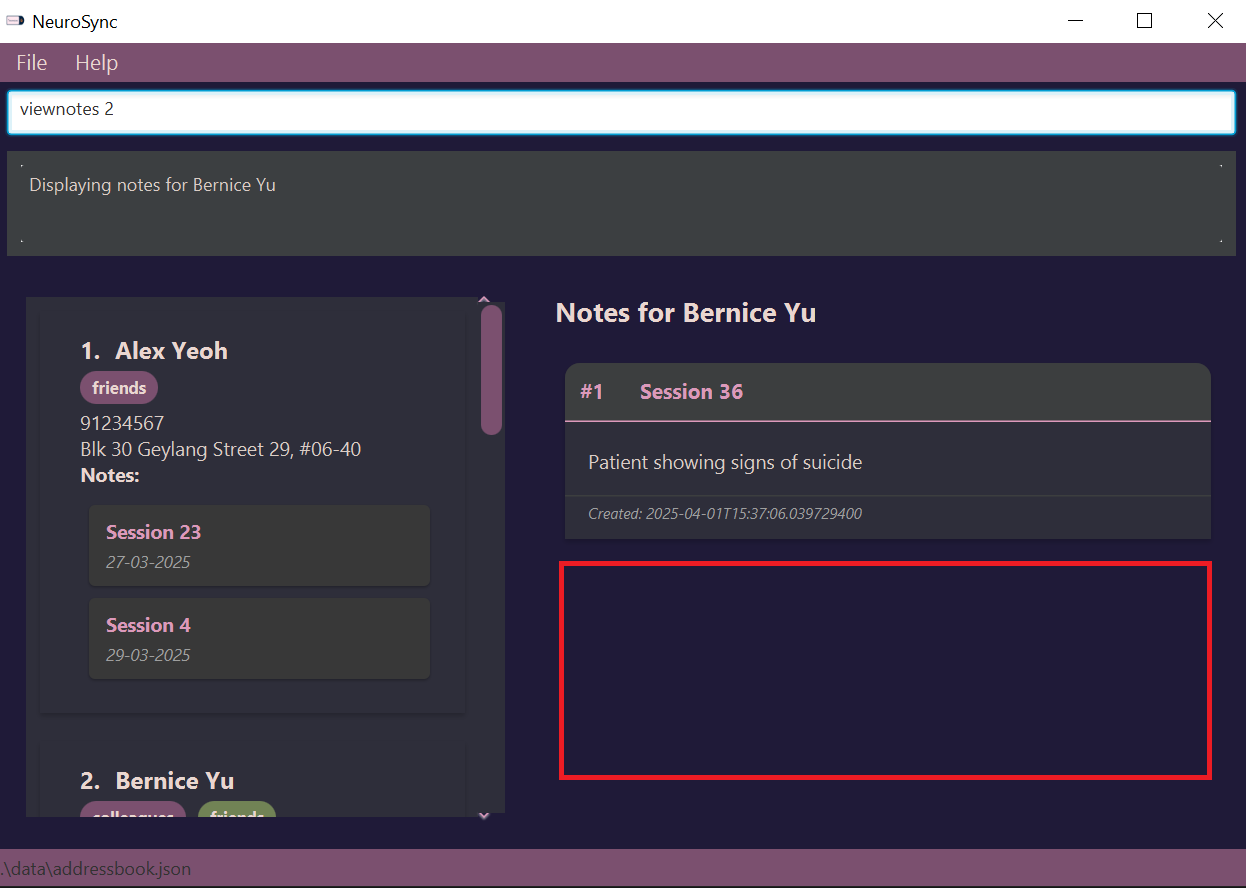
Example (following the example in undo):
redo
✔️ Expected Output:
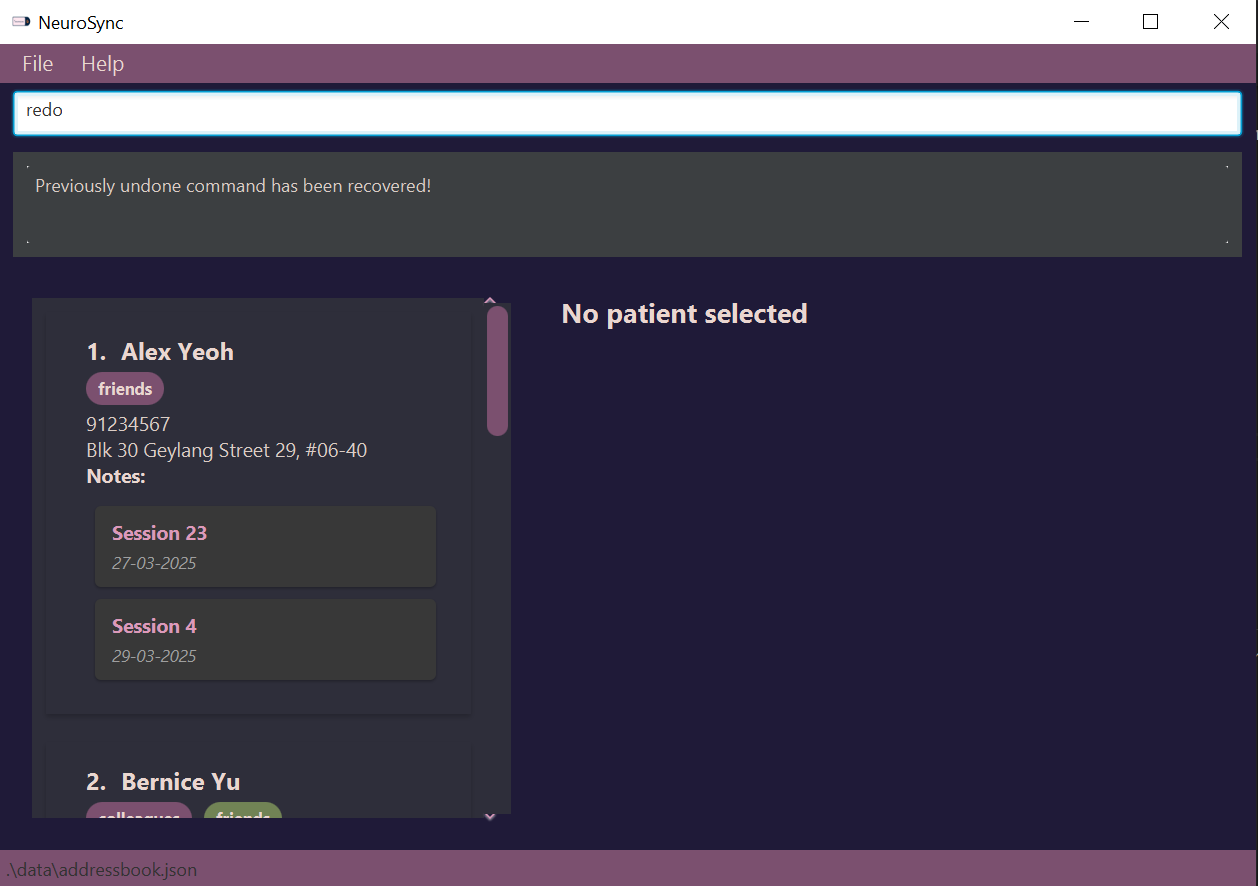
View the changes after:
Clear All Data
⚠️ Warning: Use with caution! This will instantly remove all data.
Example:
clear
✔️ Expected Output:
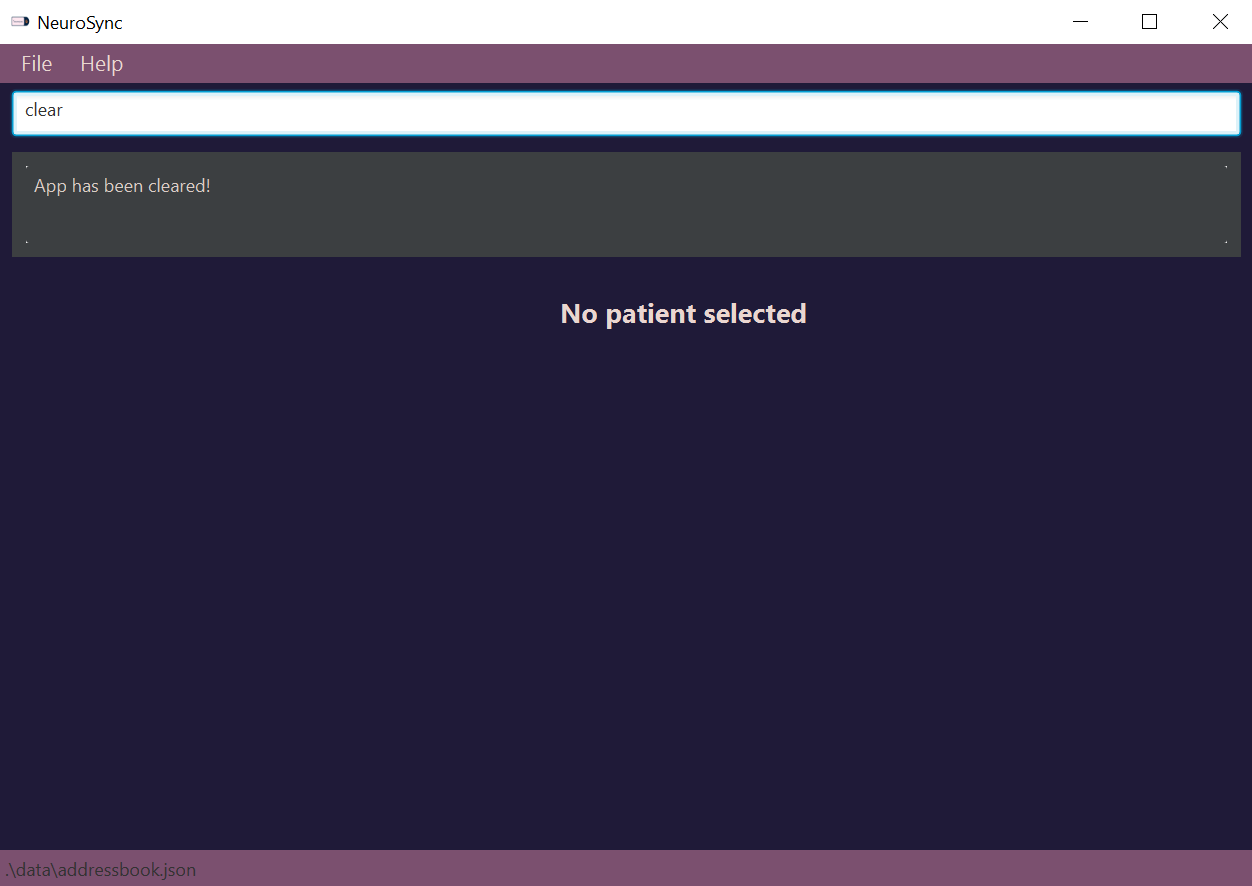
💡 Tip: You can recover your lost data using the undo command.
Help
Opens a pop-up to give you the link to this User Guide
Example:
help
✔️ Expected Output:
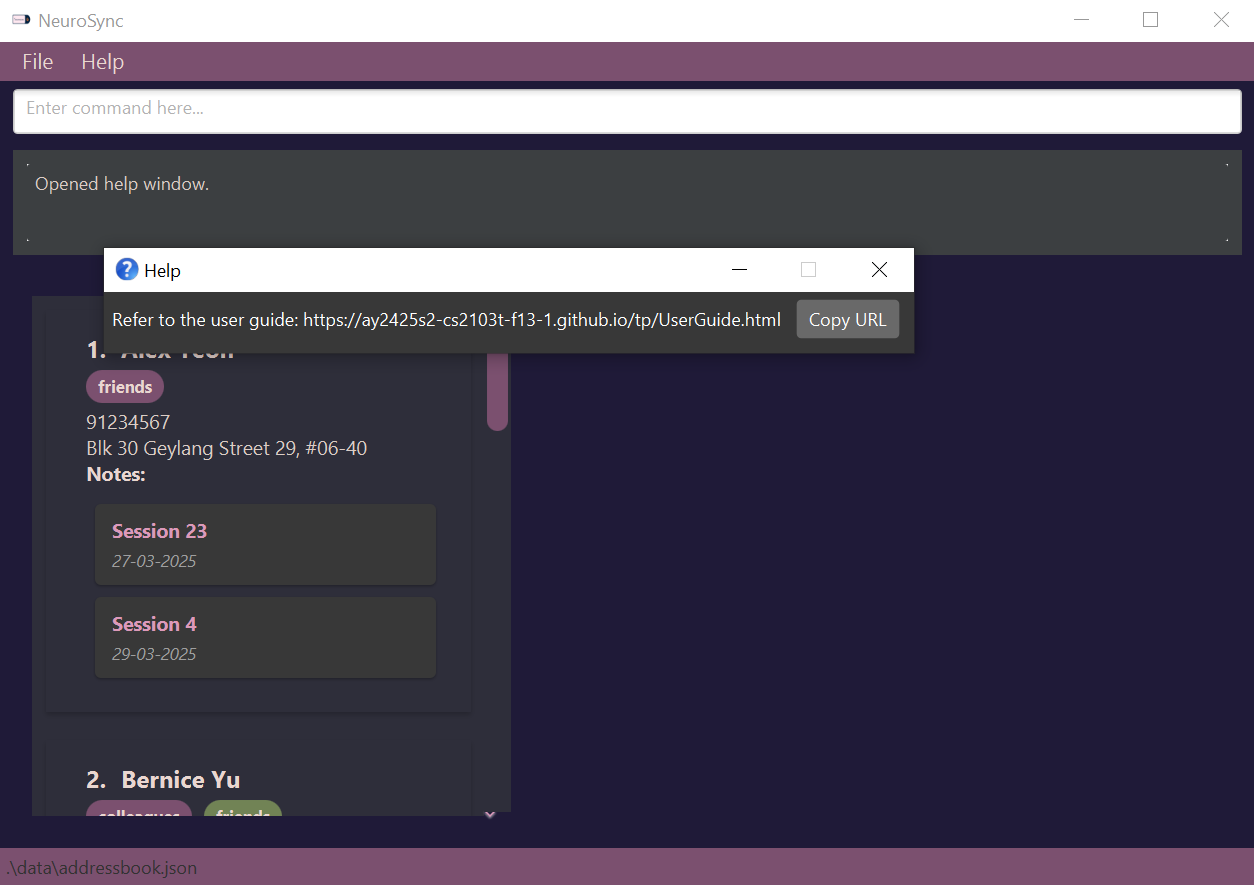
💡 Tip: Use help if you forget a command.
❓ FAQs & Troubleshooting
Q: Where is my data stored?
A: Your data is saved in addressbook.json inside the /data folder.
⚠️ Warning: Please do not modify addressbook.json as there could be unpredictable effects.
Q: Can I undo a deletion?
A: Yes! There is an undo feature, to recover data or undo edits.
Q: How do I transfer data to another device?
A: Copy the addressbook.json file from /data and paste it into the same directory on the new device.
Q: How many patients does NeuroSync Support??
A: 999999999, if more are added, unexpected behaviour may happen.
Q: Can I use languages other than English?
A: As of now, NeuroSync only has full support for English. Using other languages is not totally disallowed, but may cause unintended behaviours. Do keep a lookout for future releases supporting more languages!
🙌 Acknowledgements
This project is based on the AddressBook-Level3 project by the SE-EDU initiative.
Visit se-education.org for more open-source CS education projects.
📬 Contact & Support
For issues and contributions, please raise an issue or pull request in the GitHub repository.
🚀 Enjoy using NeuroSync!